Setting Reminders for Notifications on Your Android Phone
Smartphones often inundate us with constant notifications, making it easy to miss important ones. However, Android offers a convenient feature that allows you to set reminders for notifications. This built-in feature can be handy whether you own a Samsung Galaxy, Google Pixel, or any other Android phone.
Enabling Notification Snoozing
First, you must ensure the notification snoozing feature is enabled on your Android device. This feature allows you to receive reminders for notifications at a later time. Here’s how to enable it:
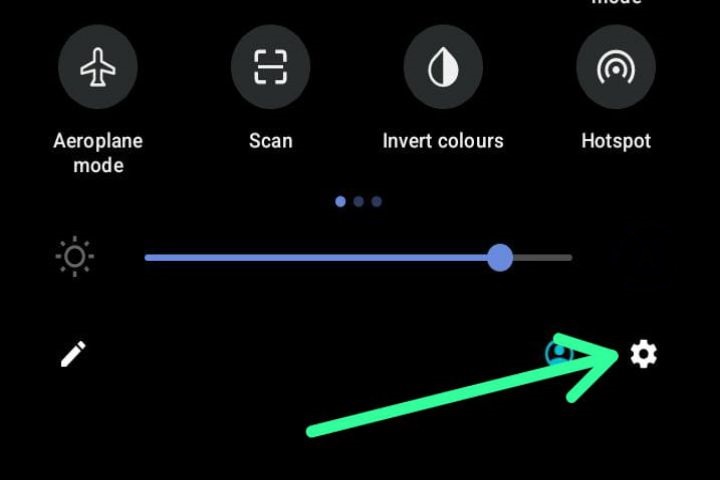
- Swipe down once or twice from the top of your screen to access the notification panel.
- Tap on the gear icon located in the top corner to access the settings menu.
- Scroll down and find the “Notifications” section.

- Toggle on the “Allow Notification Snoozing” option.
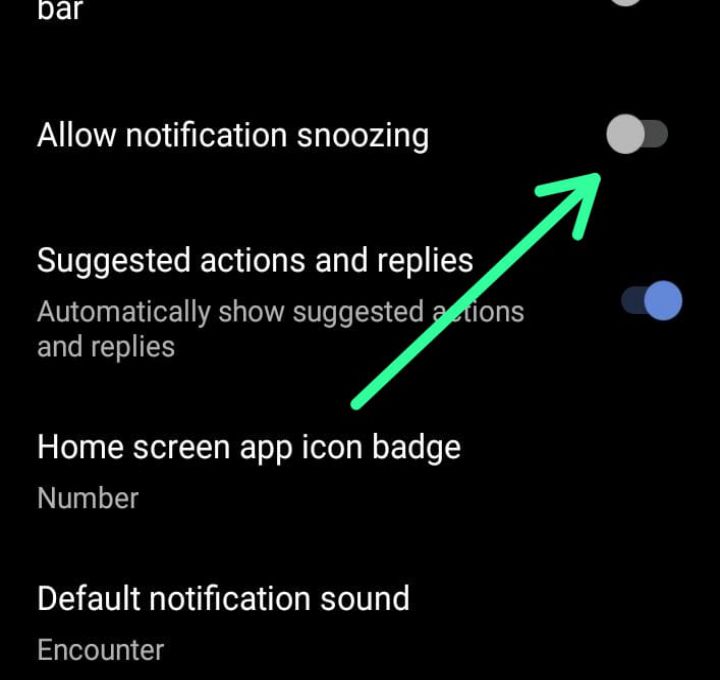
Note: On certain devices, you may need to go to “Advanced Settings” to locate the “Show Snooze Button” option.
Using Notification Reminders
Now that you have enabled notification snoozing, you can use the feature easily. Follow these steps to set reminders for notifications on your Android device:
- Begin by having an existing notification you want to be reminded of. If the notification is not expanded, either drag it down or tap the arrow icon on the right side to expand it.
- In the bottom corner of the expanded notification, you will see a small clock or bell icon. Tap on it.
Different Devices, Different Options
The next step might vary depending on the Android device you own. Let’s explore the options for Google Pixel and Samsung Galaxy devices:
- Google Pixel: By default, Google Pixel phones offer a snooze time of one hour. However, you can tap the down arrow to select a different time length that suits your needs.
- Samsung Galaxy: You can choose the desired time length for the reminder immediately on Samsung Galaxy devices. Select the desired time and tap “Save.”
Receive Important Notifications Again
Once you have completed the steps above, the notification you snoozed will reappear after the specified time. Keep in mind that not all notifications offer this option, but most notifications do. Utilize this feature to ensure that you never miss important notifications again.
Conclusion
With the built-in feature of setting reminders for notifications on Android devices, you no longer need to rely on third-party apps. Whether you’re using a Samsung Galaxy, Google Pixel, or any other Android phone, getting reminders for notifications is now a seamless process. Enable the notification snoozing feature and follow the simple steps outlined above to make the most of this convenient feature and stay on top of your important notifications.