Saturday, June 20, 2026
Haber Tusba
  • World
  • Business
  • Netflix
  • Gaming
  • Technology
  • Sports
  • More
    • Prime Video
    • Apple TV
    • Disney+
    • Google TV
    • HBO Max
    • Hulu
    • Paramount+
No Result
View All Result
Haber Tusba
Home Technology

How to Save a Route on Google Maps for Quick and Easy Access

by Ayaz Ahmet
August 30, 2023
in Technology
2 min read
0
Share on FacebookShare on Twitter

Related posts

The Decline of Twitter: Elon Musk’s Controversial Decisions Result in Massive Loss in Value

Unlocking FaceTime Reactions on iOS 17: Adding Fun and Entertainment to Your Video Calls


How to Save a Route on Google Maps

How to Save a Route on Google Maps

Do you want to enter your destination whenever you want directions manually? You can save your routes with Google Maps for quick and easy access. We’ve got you covered whether you’re using an iPhone, iPad, or Android device. In this guide, we’ll show you exactly how to save a route using the convenient “pin” option on Google Maps.

What to Know When Saving Routes in Google Maps

Before we dive in, it’s important to know a few key things when saving routes in Google Maps. Firstly, you can only save driving and public transport routes. Secondly, if you save a driving route, your source location will always be your current location. However, with public transport routes, you can customize the source location.

Save a Route in Google Maps on iPhone, iPad, and Android.

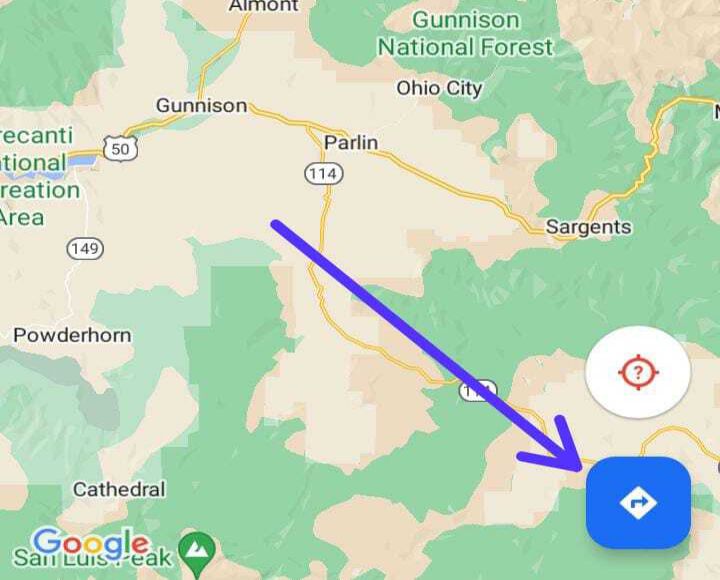
First, open the Google Maps app on your iPhone, iPad, or Android. Once you’re in the app, locate the directions icon on the right side and tap on it.
How to Save a Route on Google Maps_

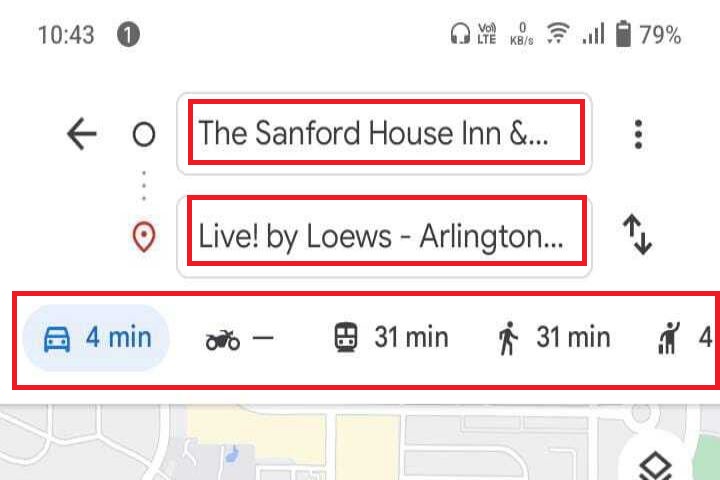
Next, you must enter the desired route’s source and target locations. Once you’ve done that, choose your preferred way to reach your destination – driving or public transport.
How to Save a Route on Google Maps_

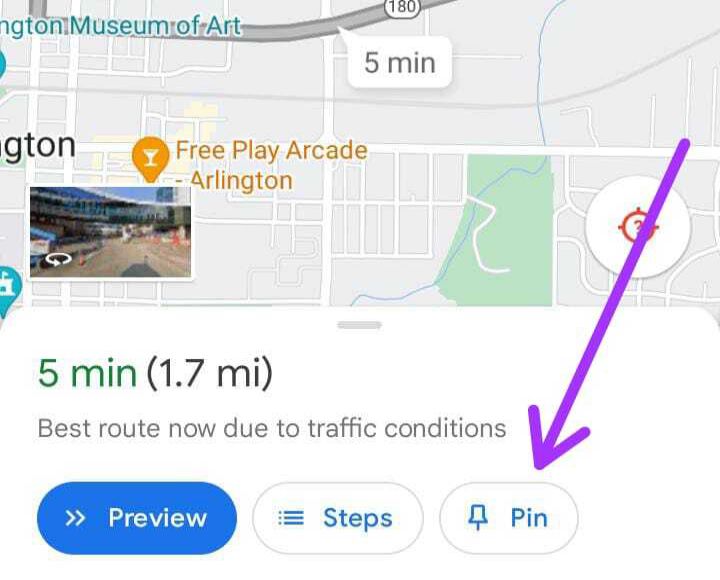
Now, here comes the important step. On the same page, you’ll find the “Pin” option at the bottom. Tap on it, and just like that, your current route is saved as a pinned item in your routes list.
How to Save a Route on Google Maps_

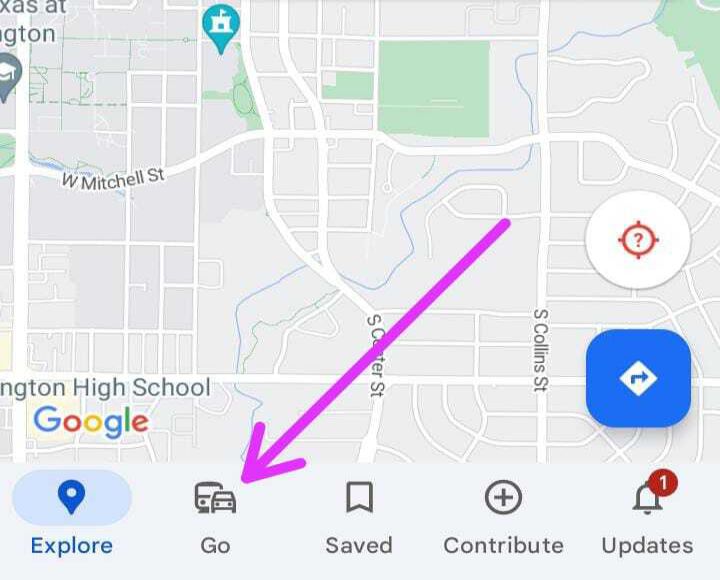
To access your pinned routes, open Google Maps and tap on “Go” at the bottom of the screen. In the “Go” tab, you’ll find all your pinned routes. Tap on a route to view the actual directions.
How to Save a Route on Google Maps_

Trending Now

  • Thumbnail-HaberTusba

    Insomniac Games Confirms Marvel’s Wolverine and Spider-Man Games Share the Same World

    0 shares
    Share 0 Tweet 0
  • Blasphemous 2: Team17 and The Game Kitchen to Port the Game for PS4 and Xbox One, Launching on November 2

    0 shares
    Share 0 Tweet 0
  • The Devastating Toll: Over 7,000 Lives Lost in Israel’s Three-Week Assault on Palestinians

    0 shares
    Share 0 Tweet 0
  • Israel’s Complete Cutoff of Communication Channels in Gaza Condemned by Ankara

    0 shares
    Share 0 Tweet 0
  • this index lets you know if your account has been hacked

    0 shares
    Share 0 Tweet 0
Haber Tusba

We bring News from all around the World and everything you need to know from World, Entertainment, Tech, Sports & Gaming News.

Category

  • Apple TV
  • Business
  • Disney+
  • Entertainment
  • Featured
  • Gaming
  • Google TV
  • HBO Max
  • Hulu
  • Netflix
  • Paramount+
  • Prime Video
  • Sports
  • Technology
  • World

Recent News

  • Gaza Strip Faces Major Communication Blackout Amid Ongoing Israeli Offensive
  • The Decline of Twitter: Elon Musk’s Controversial Decisions Result in Massive Loss in Value
  • EU Debt Rules Standoff Puts Pressure on Italy’s Economy: Will a Deal Be Reached?
Facebook Twitter Instagram Reddit RSS
  • Contact Us
  • Privacy Policy

© 2022 HaberTusba - All Rights Reserved.

No Result
View All Result
  • World
  • Business
  • Netflix
  • Gaming
  • Technology
  • Sports
  • More
    • Prime Video
    • Apple TV
    • Disney+
    • Google TV
    • HBO Max
    • Hulu
    • Paramount+

© 2022 HaberTusba - All Rights Reserved.